
The Copia Wealth desktop web app is your primary workspace for reviewing, organizing, and monitoring your portfolio. This interface is also referred to as the Front Office and is where most users spend their day-to-day time inside Copia.
Dashboard and Lenses
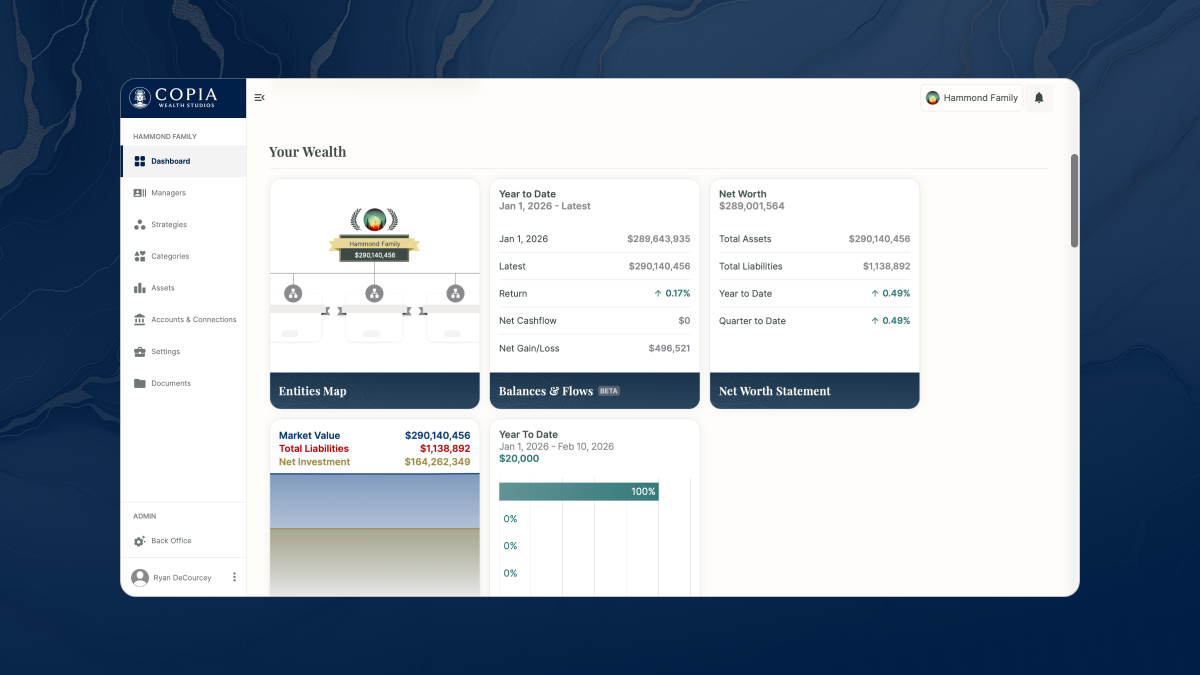
When you log in, you land on your main dashboard.
The dashboard is made up of Lenses, which provide focused views into performance, balances, net worth, reporting, and portfolio insights. Each Lens updates dynamically based on the active entity and applied filters.
Entities Map Lens
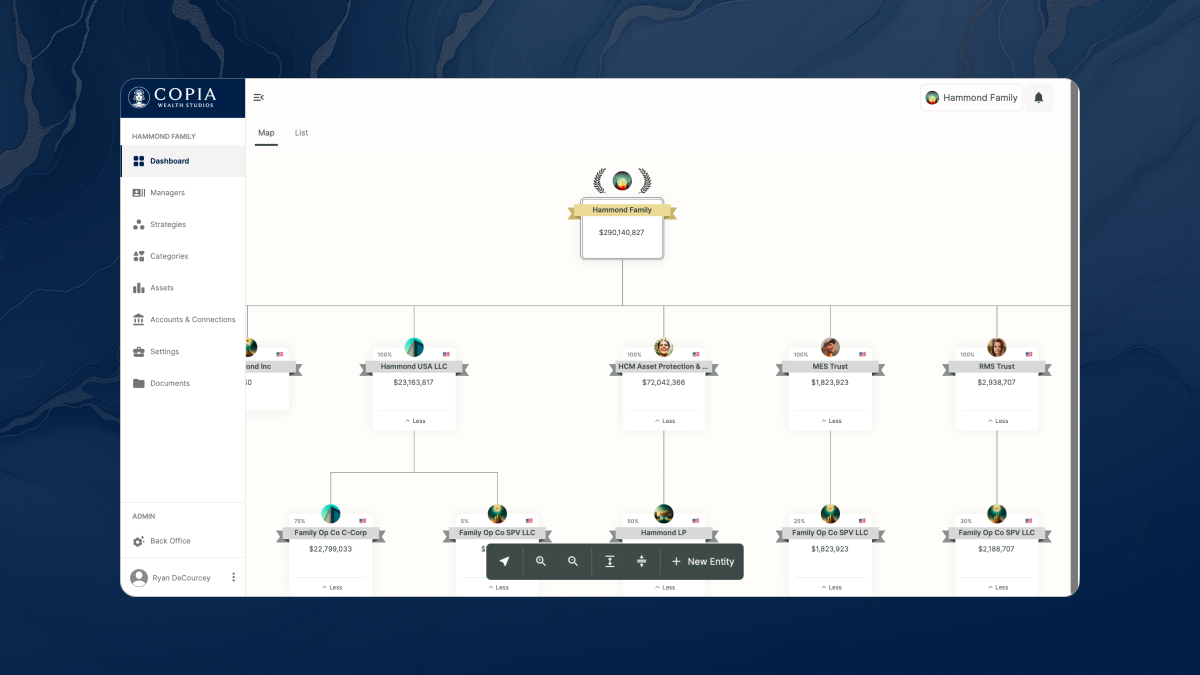
The Entities Map is the foundation of ownership structure inside Copia.
All asset and account data rolls up through entities, making this the starting point for building your portfolio structure and controlling how reporting behaves across the platform.
Managers
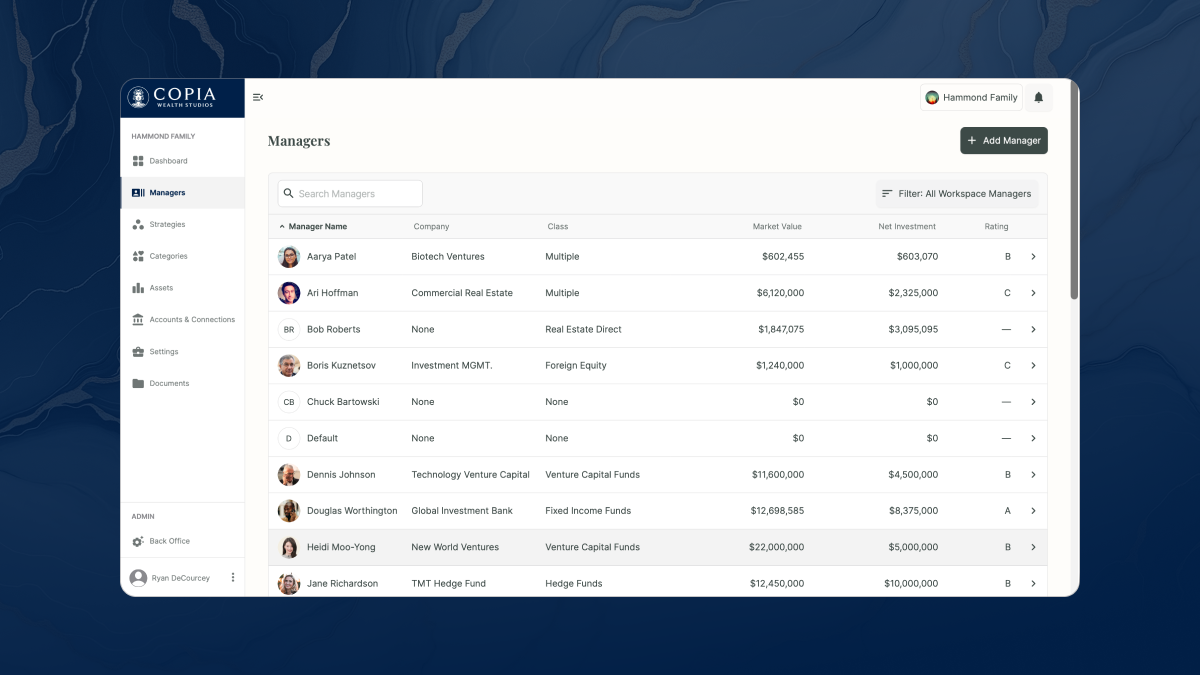
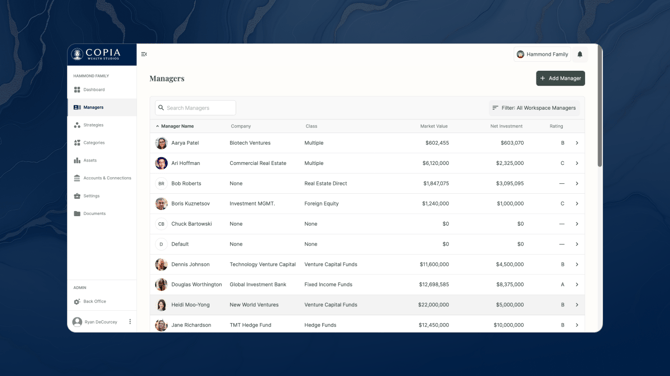
Managers represent groupings of assets based on institution, advisory relationship, or ownership structure.
They allow you to view performance and reporting rolled up across related investments.
Strategies and Categories
Strategies and Categories are not enabled by default in all workspaces. Contact support to learn more about enabling these organizational features.
Strategies group assets by investment approach, such as income-focused or growth-oriented portfolios.
Categories allow you to create custom portfolio groupings and reporting hierarchies that reflect how you want to organize your investments.
Assets
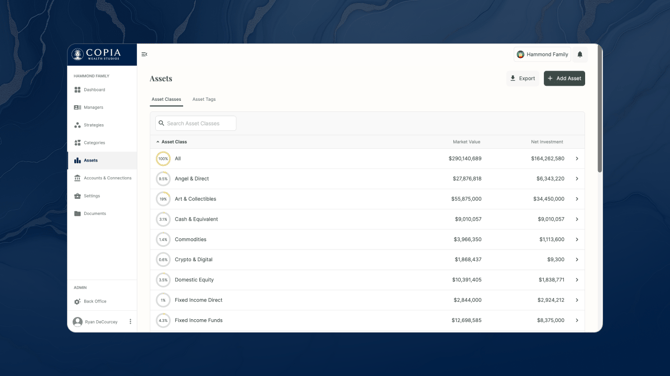
The Assets section allows you to view and manage individual investments and asset classes.
Assets may contain multiple holdings across entities and accounts. Tags can be used to further organize and filter investments across your workspace.
Accounts and Connections
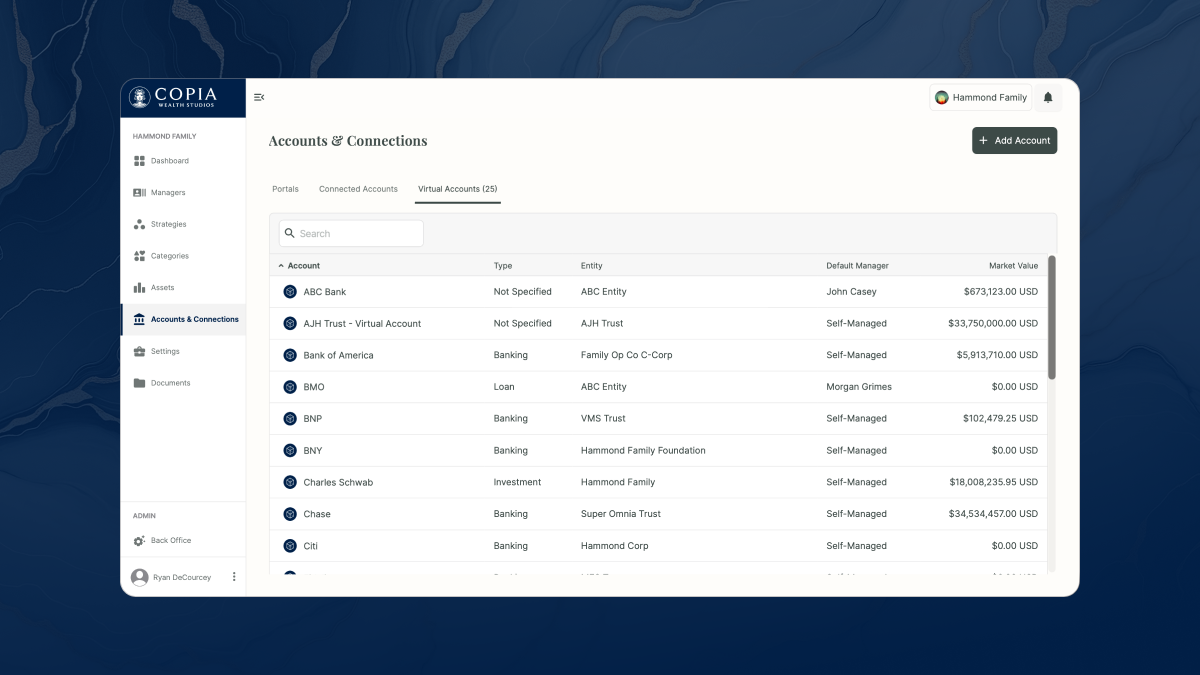
Accounts & Connections is where you link institutional data feeds, investor portals, and virtual accounts.
- Connected accounts automatically sync balances and transactions
- Virtual accounts support manual tracking
- Investor portals provide document ingestion and valuation updates
Documents
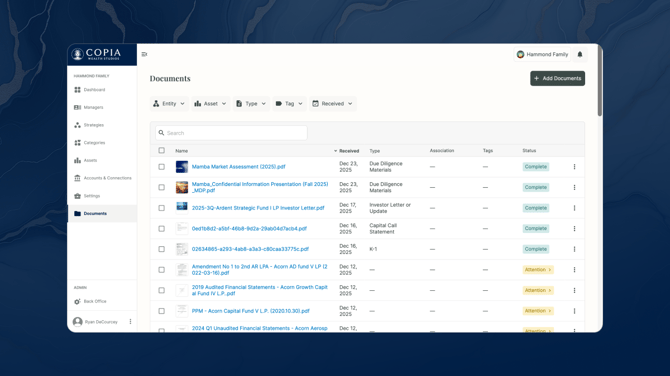
Documents uses AI-powered ingestion to organize uploaded files and convert them into structured portfolio data.
From this section you can review document status, document types, manage associations and tags .
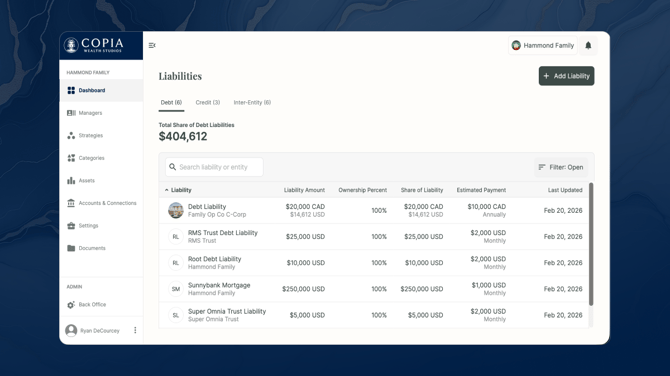
Liabilities Lens
Create and manage all your Liabilities in one place.
Settings
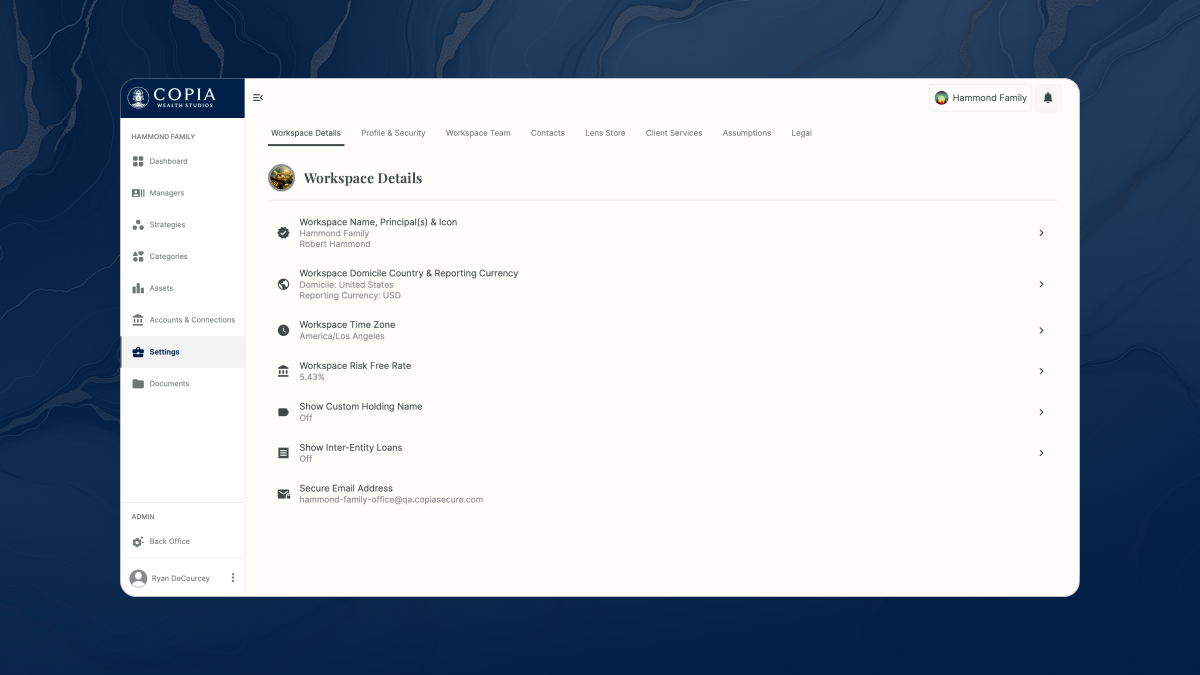
Settings is where you manage your workspace configuration and personal preferences.
From here you can update:
- Your profile and security settings
- Workspace details and contacts
- User access and permissions (based on role)
- General platform preferences
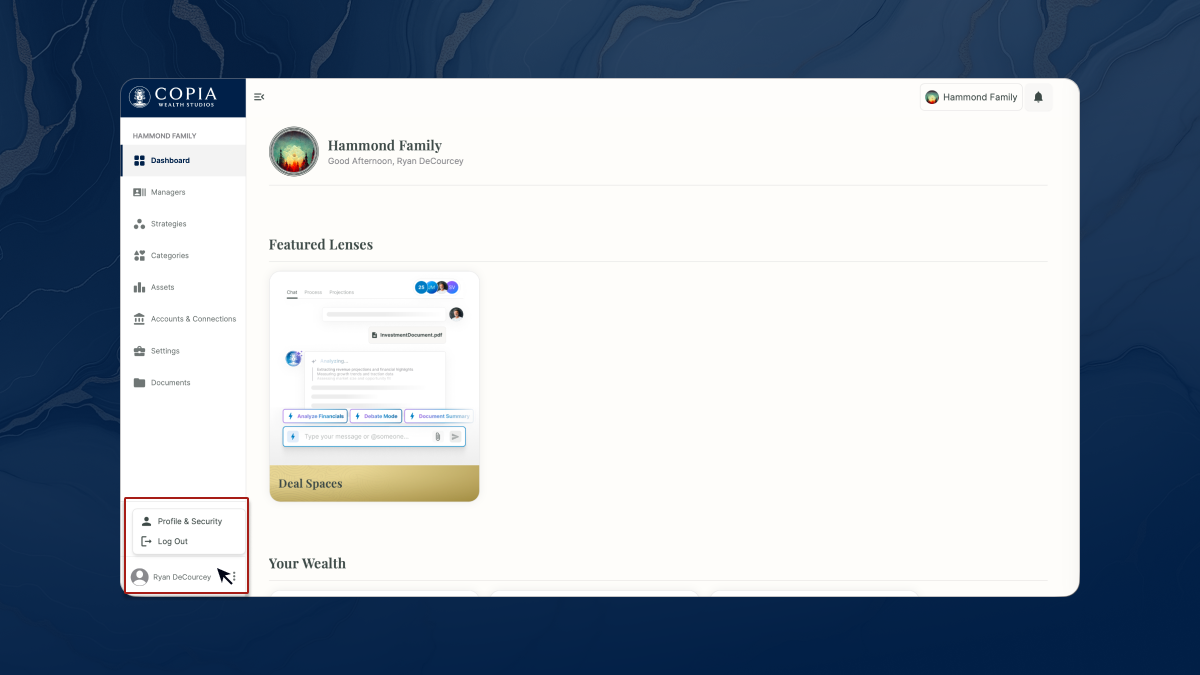
Username & Logout Button
Clicking your user name in the bottom left corner will reveal a menu with profile settings and logout.
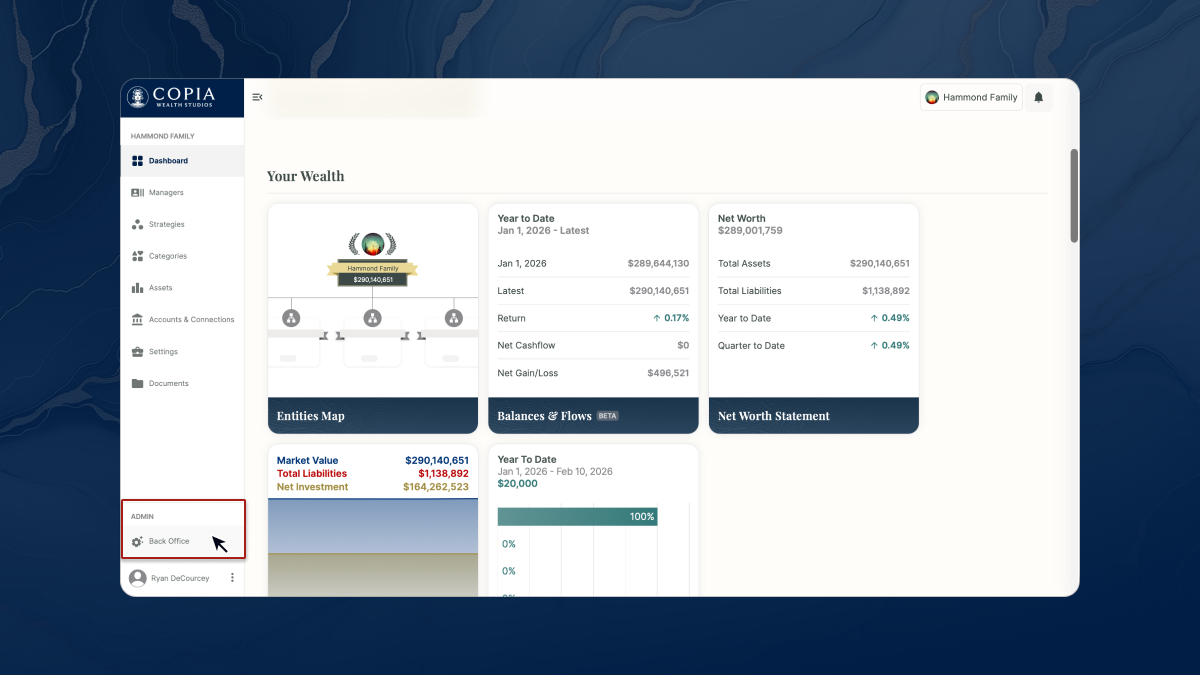
Admin Portal Back Office Button
Admins will see a Back Office link at the bottom of the sidebar.
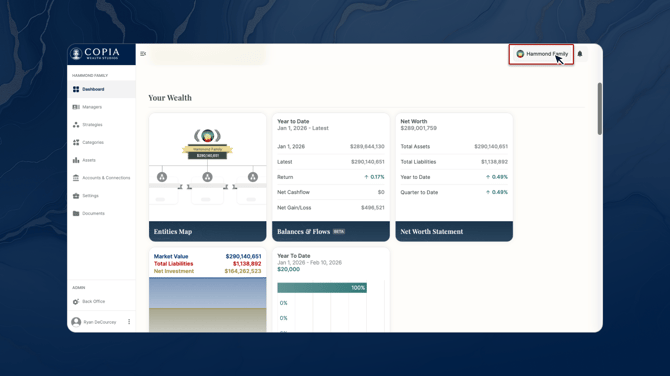
Entity Switcher
The Entities Switcher, located in the top right corner of the screen, allows you to view and filter the metrics, lenses and portfolio from the perspective of an entity. By default your root workspace entity is selected.
Next Steps
→ Entities Map Lens
The starting point for building your workspace ownership structure
→ Admin Portal Overview (Back Office)
If you manage data ingestion, spreadsheet imports, or operational configuration