Overview
Creating Your Entity Map
Adding Entities
- Creating Sub-Entities
- Moving Entities
- Deleting Entities
Best Practices
Entities Map Overview Video
Everything in Copia roles up to an Entity. An entity can have sub-entities, and store documents. Building the Entity Map is often the starting point when using Copia.
The Entities Map Lens is the foundation of your entire workspace structure within Copia. It is a place to create relationships and understand ownership between family units and legal structures. In the Entities Map Lens you can:
- Add and edit entities/sub-entities
- Create relationships between entities by defining ownership
- Reference associated accounts and documents
- Create and edit contacts (signatories, employees, etc)
- Break down asset allocations by entity (taking ownership into account)
Entity Map Overview
Map View
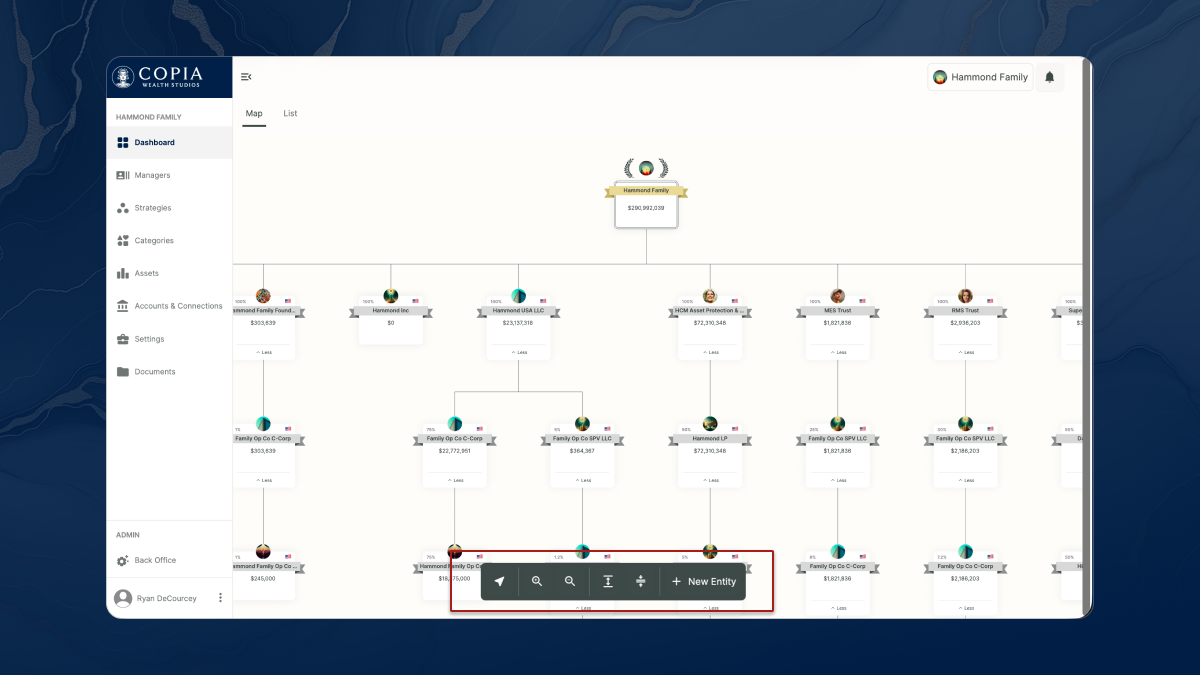
The default view of the entity map is the Map view, where you can view the ownership structure in a tree format. Across the bottom, you have universal controls for recentering the view, zoom in & out, expanding & collpase all entities, and adding new entities.
What does the Entity Map contain?
-
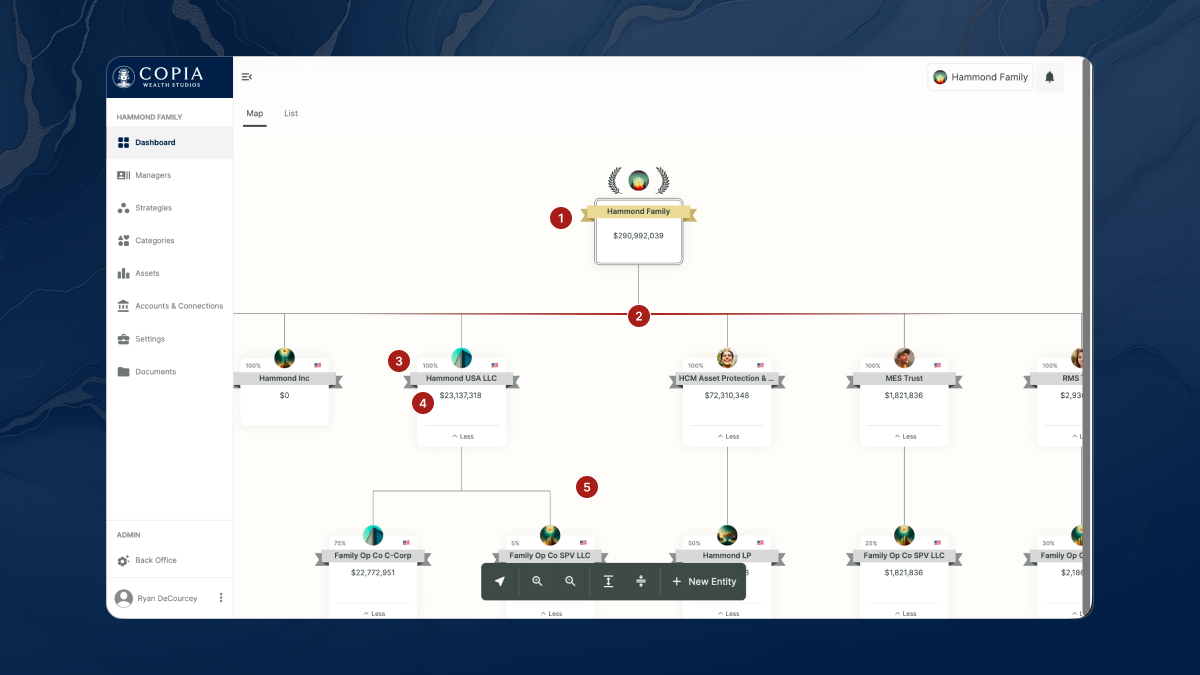
Root Entity: Upon accessing your Entity Map, you will observe an existing entity labeled the 'Root Entity.' This entity signifies the highest level of ownership and encapsulates the total market value of all assets associated with your office. To begin building your structure, the next step is to add additional entities that will be categorized beneath the Root Entity.
-
Entities: Entities that are categorized beneath the Root Entity form the primary layer of the Entities Map. This level typically includes individuals, trusts, and operating companies; however, an Entity can encompass a wide range of representations, offering flexibility in defining your organizational structure.
-
Ownership %: In the top left corner, you will see the ownership percentage that indicates how much the selected entity is owned by its parent entity. For instance, Hammond USA LLC is fully owned at 100% by the root entity.
-
Market Value: The market value displayed in this section reflects the value of the entity itself, exclusive of any sub-entities it may have.
-
Sub-Entites: Sub-Entities are created under existing entities you’ve established. They can be owned by multiple entities, which can lead to the same Sub Entity appearing in various locations on the Entity Map. This allows for a more intricate and flexible representation of your organizational structure.
Entity Details Panel
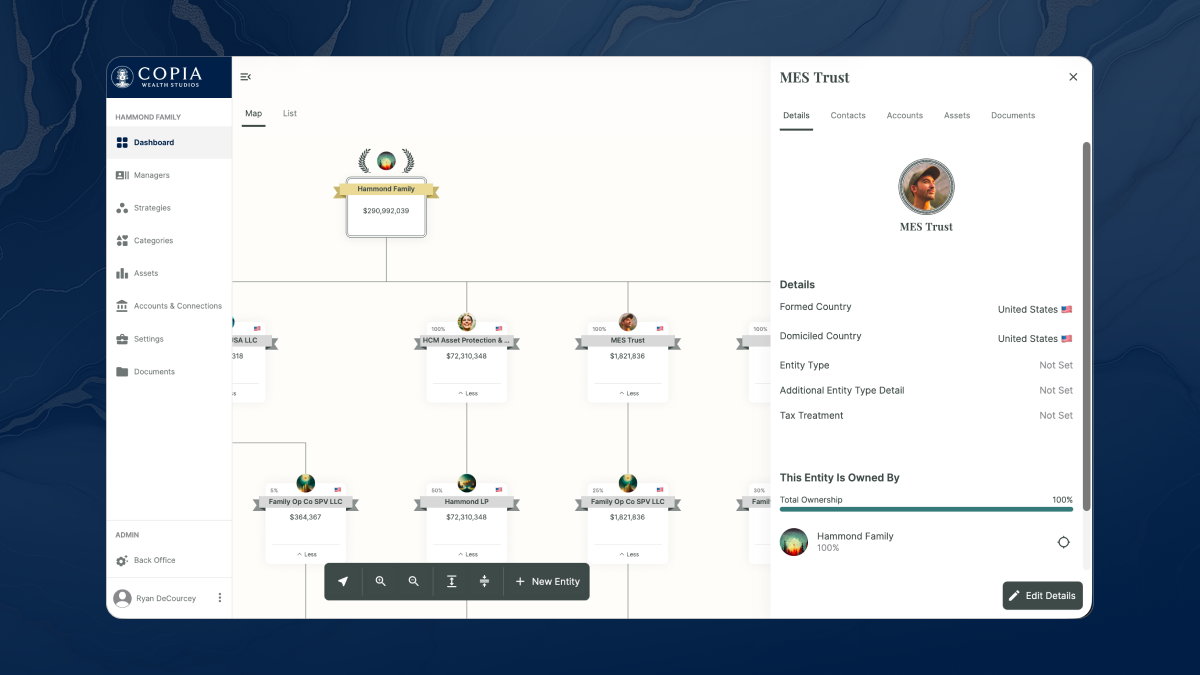
When you click an entity, you'll find the entity details panel. This is where you can establish or edit ownership, browse or create contacts, and review any associated accounts, documents, or asset classes rollups. To make changes to details or ownership use the Edit Details button in the bottom right corner.
Creating your Entity Map
Adding an Entity
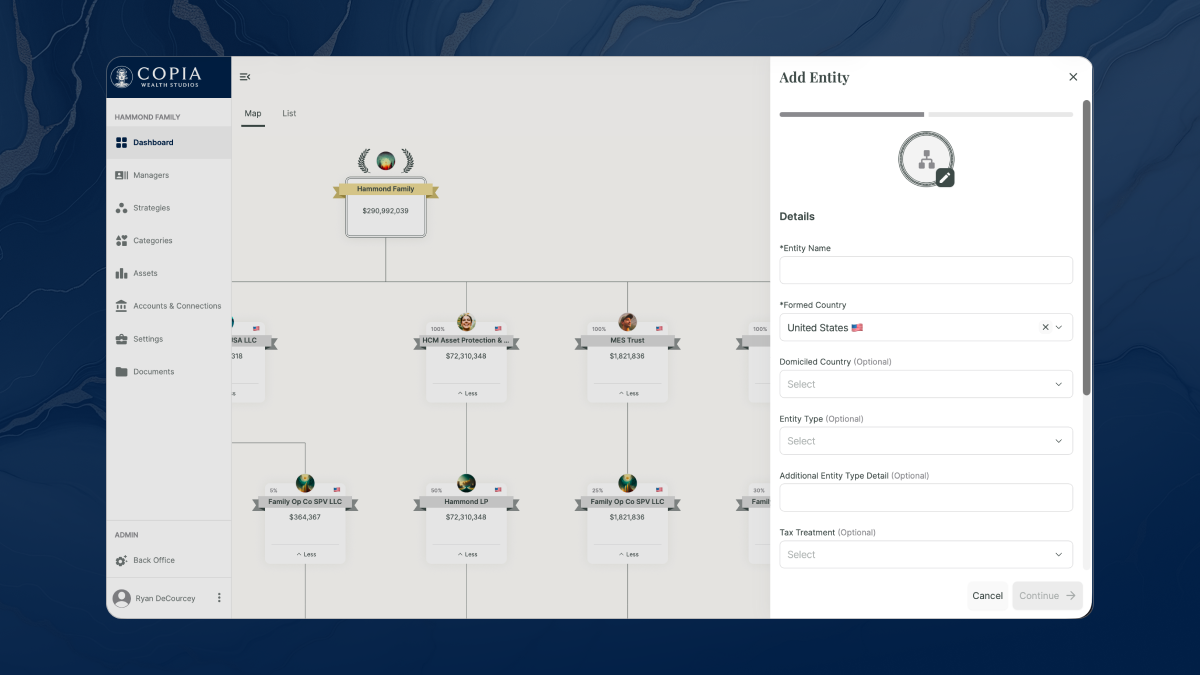
To add an entity, simply locate the Add Entity button in the bottom menu. Clicking this button will open the Add Entity side panel, where you can enter essential information about the entity in 2 steps.
Add Entity Step 1 — Details: Give your entity a name, with optional fields for formed country, domiciled country, entity type, additional type details, tax treatment, category or strategy (if using in workspace) and notes. When finished hit Continue.
Add Entity Step 2 — Ownership: Set the entity ownership structure. There are two options for Without Share Classes (default) and With Share Classes. This information can be easily modified later, allowing you to update ownership as your entity map grows.
Without Share Classes allows you to select the Owning Entity from a dropdown of all existing entities with a Percent field to enter a number from 1 - 100. Clicking the Add Additional Owner button will add another Owning Entity dropdown with percent. 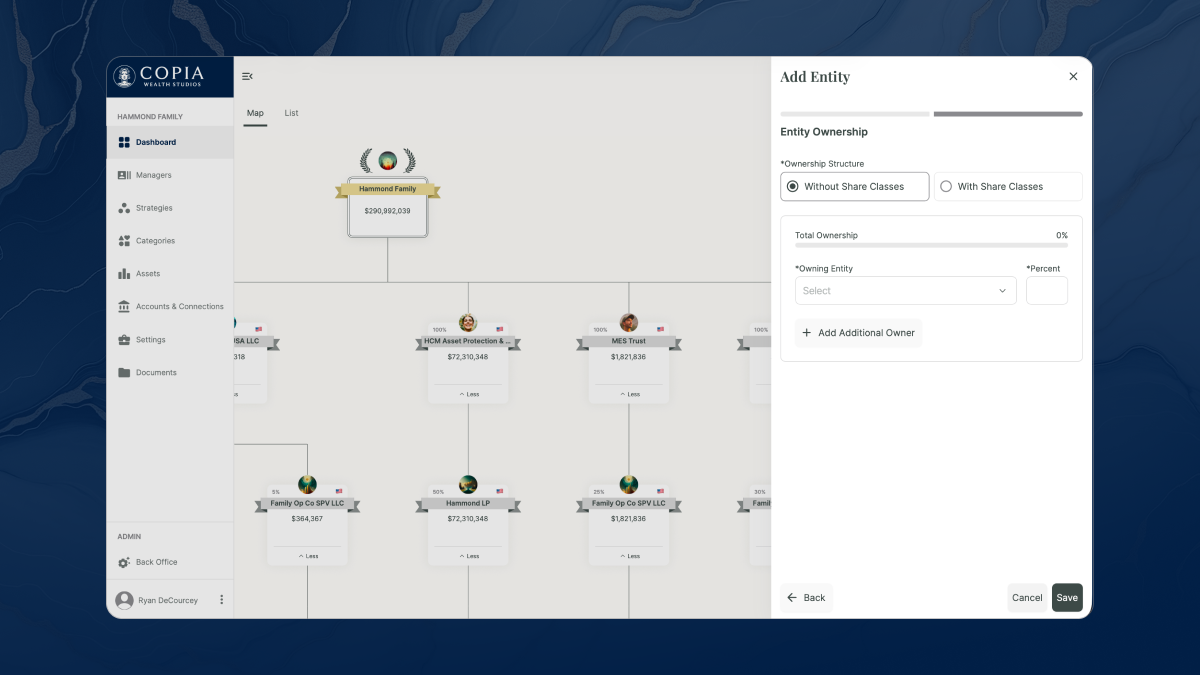
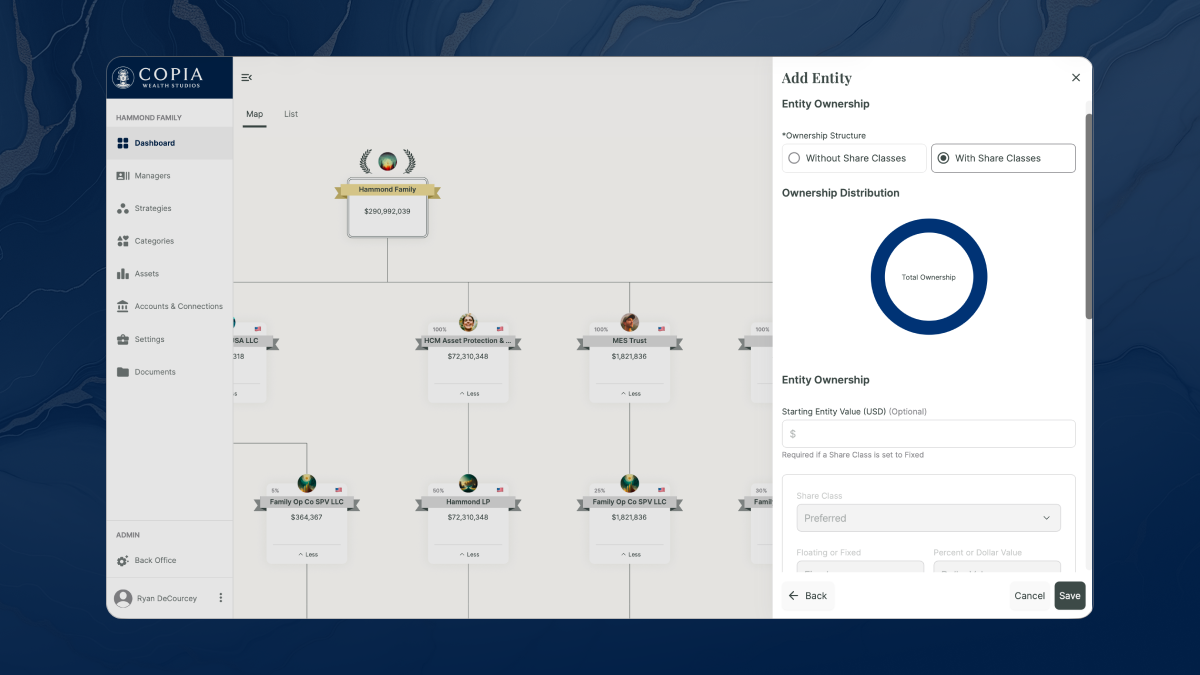
With Share Classes shows the ownership distribution in a chart. Start by adding an optional Starting Entity Value. Ownership here is broken into 2 groups for Preferred Share Class (Fixed & Dollar Amount) and Common Share Classes (Floating & Percentage).
Creating Sub Entities
The process of creating a Sub Entity is very similar to creating a regular entity. When Adding or Editing an Entity simply specify which existing Entity or Entities the Sub Entity should be owned by. You can also have Sub Entities owned by other Sub Entities. This flexibility allows you to create a hierarchical structure that best suits your needs.
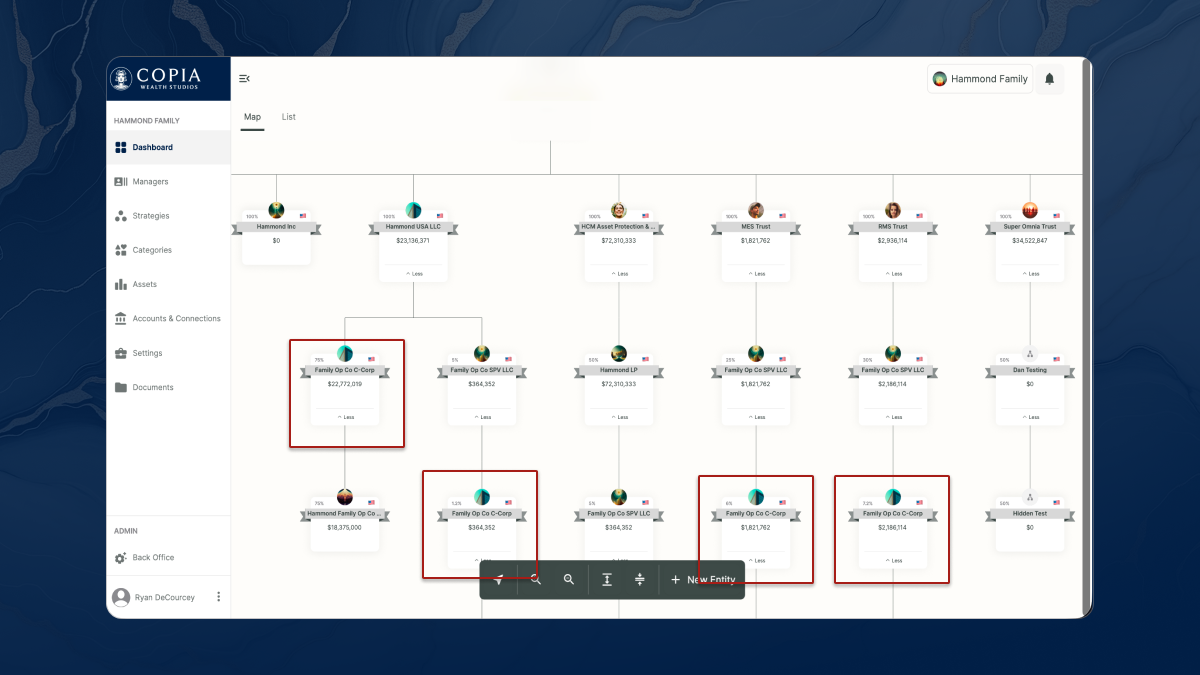
In this example, the Family Op Co C-Corp is a sub-entity that is owned by four different entities with three of them being sub-entities. This feature allows you to conveniently create any structure you desire within the Entity Map.
Moving Entities
Moving entities across the Entity Map is a simple process. All you need to do is change the ownership of the entity by adding an additional owner. Additionally, if you divide the ownership of an entity further, it will create more instances of it on the Entity Map, with each instance having its own set of values based off of its ownership.
Furthermore, you can also change the ownership percentages of Entities. You can easily make these changes by clicking any entity, selecting Edit Details, then click Continue to see Entity Ownership in the second step of the edit view.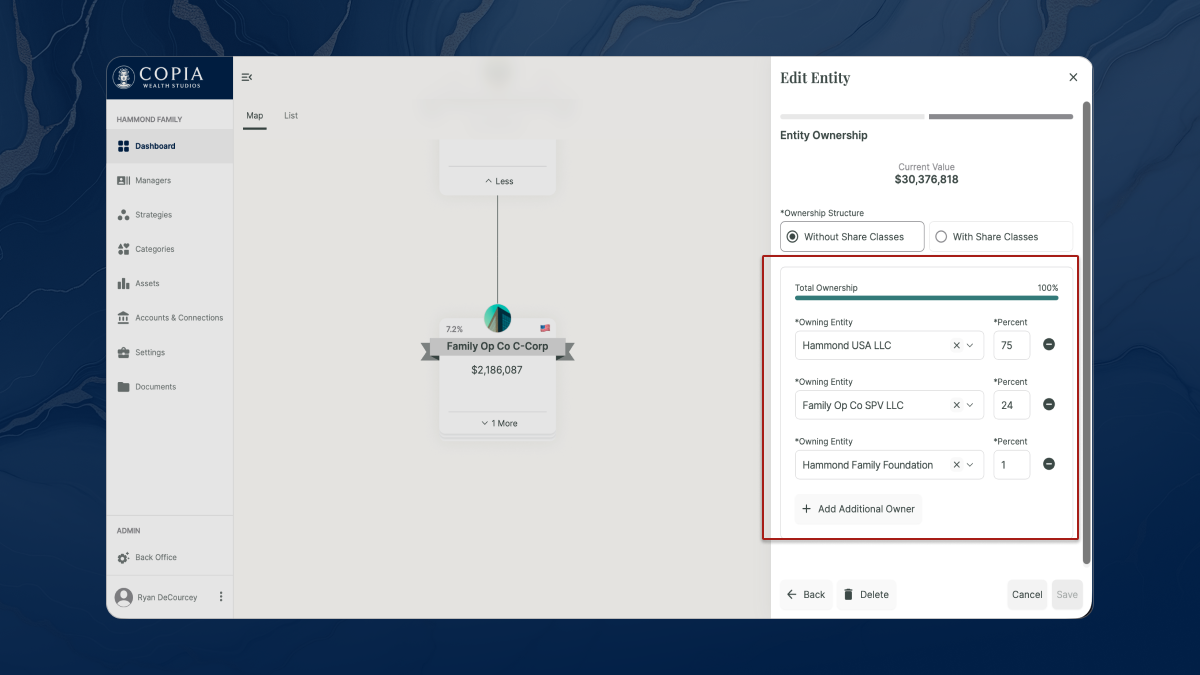
Deleting Entities
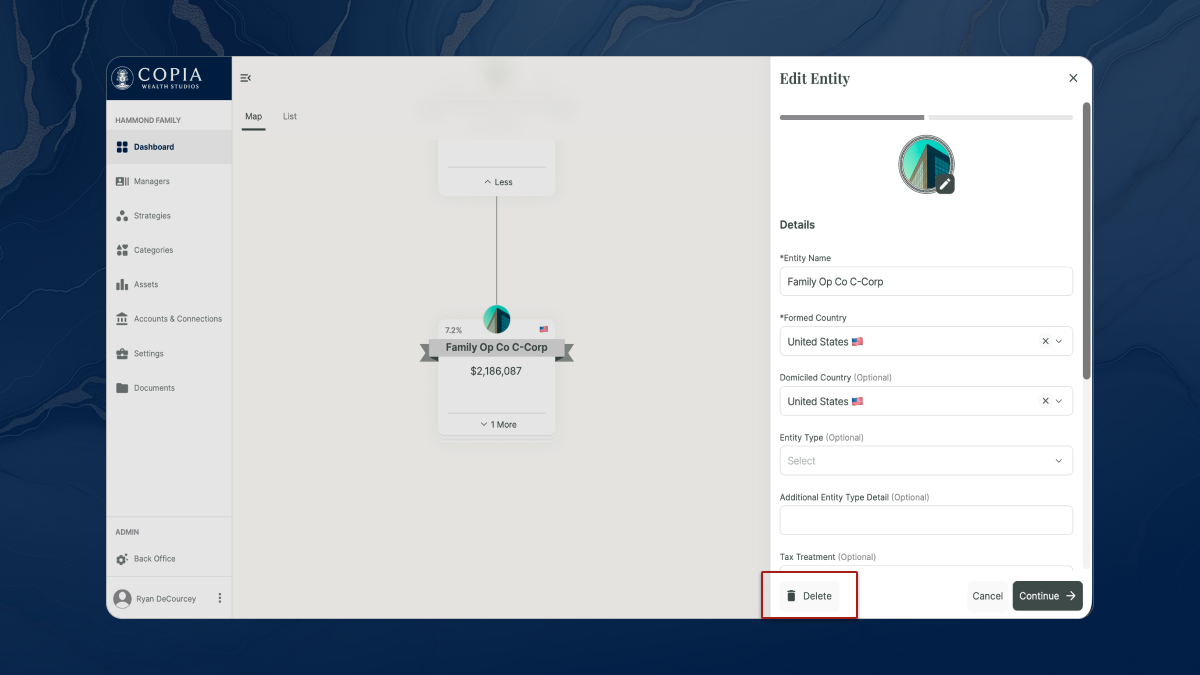
Deleting entities is a straightforward process and can be done in the Edit Entities screen after selecting an entity on the Entity map. The Delete button is at the bottom left of the Edit screen.
You may be presented with actions to keep your map tidy when deleting an entity.
Resolve Associated Accounts is a required action that assigns any connected accounts to a different entity. (Accounts can also be permanently deleted in Accounts & Connections.)
Redistribute Partially Owned Sub-Entities is an optional action that appears if deleting the entity would create partial ownership gaps.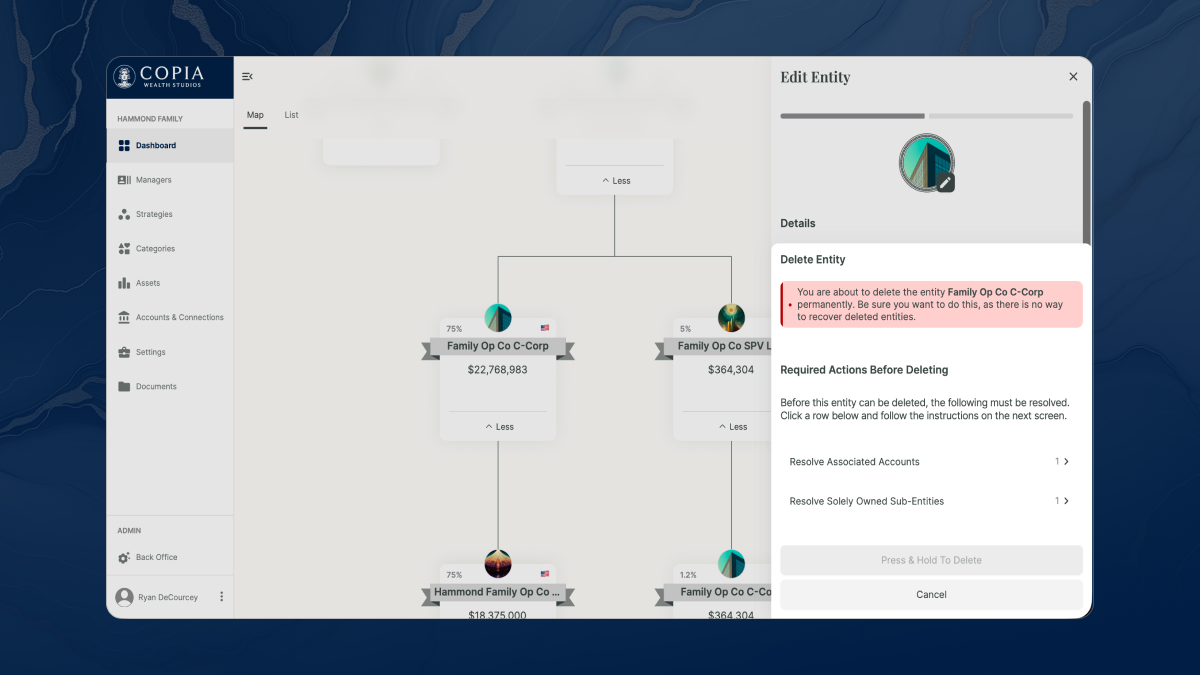
Best Practices
Virtual Accounts
A Virtual Account is created for every new Entity. Since transactions live in accounts, any assets linked to a specific entity will also need a corresponding account to properly represent them. These can be managed later to connect Entities to Portals or Connected Accounts. Visit Accounts & Connections for more on how to manage accounts.
Using the Entity Picker
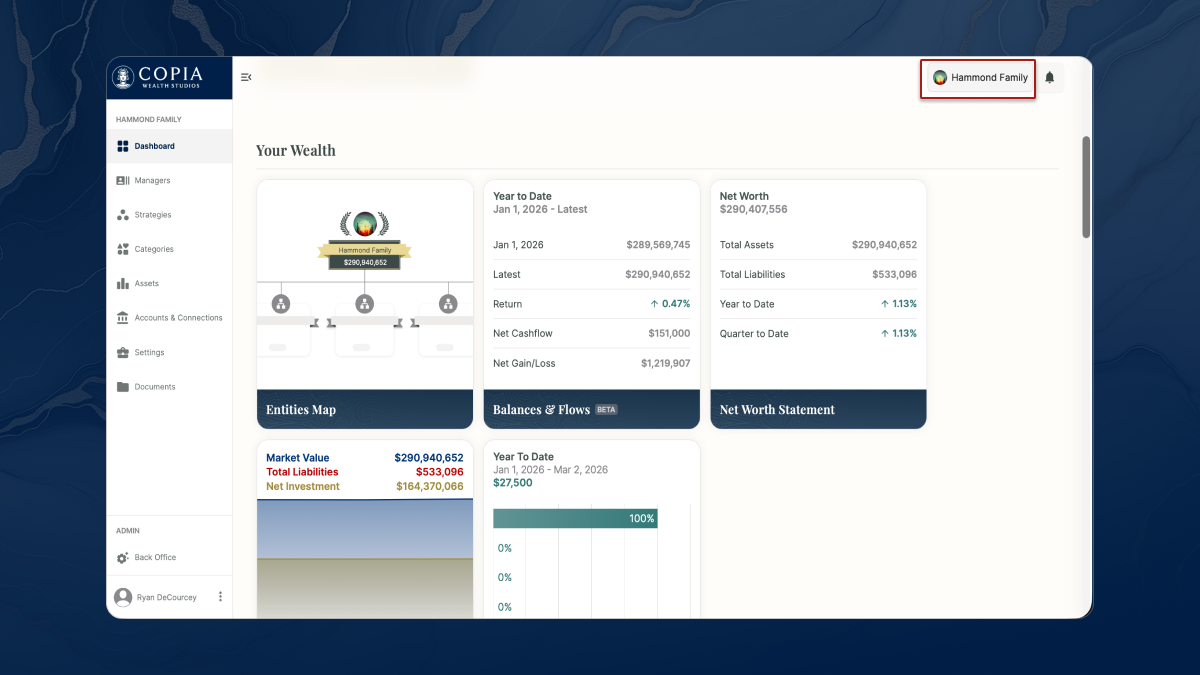
The Entity Picker, located in the top right corner of all views, including the Dashboard and Lenses, allows you to explore your office's data from the perspective of a specific Entity. For instance, when you select a new active Entity, you'll notice that all lens cards dynamically update to reflect the values associated with it. This feature provides a tailored view of your information, enhancing your ability to analyze and manage your organizational structure effectively.
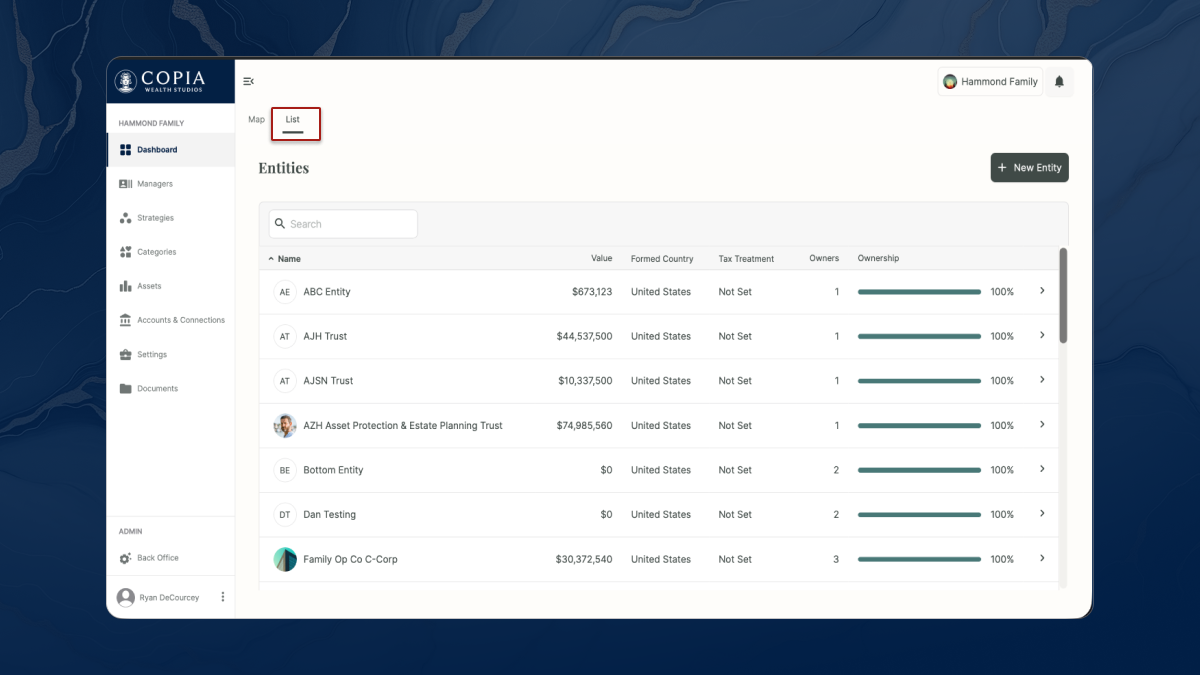
List View
You can also view the entity map in "list view" by using the toggles in the top left of the screen. This will simplify the view, removing relationships and giving you a raw list of all entities. They can be searched and sorted by Value, Name, etc.