Portals
Connected Accounts
Virtual Accounts
Viewing Account Details
Editing or Deleting an Account
Portals
Investment Portal connections allow Copia to automatically gather documents from your investment portals, fund managers, and brokerages.
What You'll Need
- Fund or investment account details
- Signatory information for authorization
- Fund manager's contact information
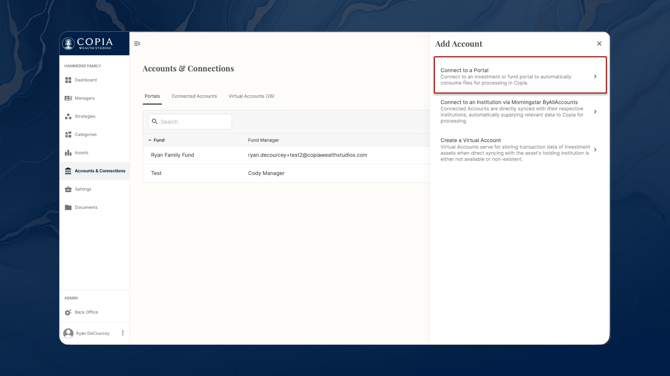
1. Add a Portal Connection
- Go to the 'Accounts & Connections' page
- Click 'Add Account' in the top right corner
- Select 'Connect to a Portal'
2. Complete the Connection Form
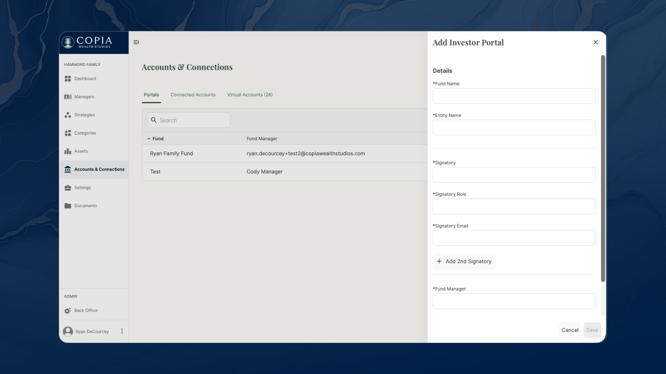
Enter the following required information:
- Fund Name: The name of the fund or investment account
- Entity Name: Select your family office or relevant sub-entity
- Signatory Details: Information for the person authorized to grant portal access
- Fund Manager Information: Name and email address of the fund manager
3. Authorization Process
After submitting the form:
- Copia generates a Letter of Authorization
- Signatories receive the document via DocuSign
- Signed document is automatically forwarded to the fund manager
- Fund manager grants portal access to Copia
4. Automated Document Collection
Once access is granted:
- Copia begins collecting documents daily
- AI processes each document automatically
- Extracted data is integrated into your dashboard
- Information is updated across your office views
Best Practices
- Ensure signatory information is accurate to avoid delays
- Double-check manager contact details
- Set up connections for all active portals to maximize automation
- Monitor the connection status in the Accounts & Connections page
Troubleshooting
If your connection isn't working as expected:
- Verify that the Letter of Authorization has been signed by all parties
- Confirm the fund manager has processed the access request
- Check your connection status in the Accounts & Connections page
Need additional help? Contact our support team.
Connected Accounts
A connected account is tied to a live data feed that continuously delivers balance, position, and transaction information into Copia. These feeds may originate from several sources, including a Morningstar ByAllAccounts connection, an SFTP data delivery, or a direct institutional API integration.
Establishing a connection allows Copia to automatically ingest and update portfolio data, reducing manual entry and improving reporting accuracy across the platform.
What You'll Need
-
Valid login credentials for the institution or portal being connected
-
Access to any required multi-factor authentication (2FA) methods
-
Authorization to grant third-party data access for the selected accounts
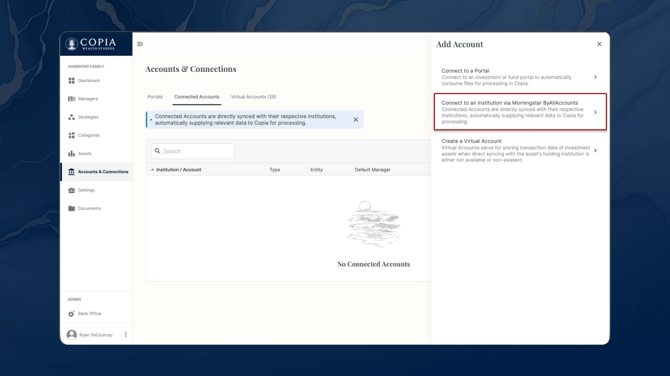
1. Add Connected Account
- Go to the 'Accounts & Connections' page in the front office
- Click 'Add Account' in the top right corner
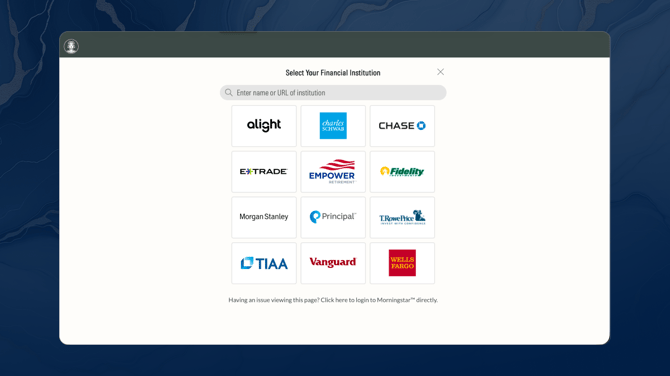
- Select 'Connect to an Institution via Morningstar ByAllAccounts'
2. Follow the prompts and on screen directions
The typical flow is:
- Search for your institution
- Log into to the account as you normally would
- Authorize access to the appropriate accounts
- Wait patiently for authorization to finish
The process of establishing a connection through BAA can take several minutes to complete, and requires that you have credentials for the account, as well access to any required 2FA.
3. Connection Statuses
Once the connection is established, it can take up to 48 hours for data to start flowing to Copia. There are 4 status's in Copia to help troubleshoot connection issues:
- Active: This means data should be flowing without issue. If no data appears after 48 hours, contact Copia to troubleshoot the issue.
- Syncing: Copia is actively retrieving and processing data from the connected institution. This commonly occurs immediately after a new connection is created or reauthorized. Data may appear gradually during this period.
- Interrupted: The connection was previously working but is no longer able to retrieve updated data. This is often caused by changed credentials, expired multi-factor authentication, or institution-side security updates. Re-enter credentials or reauthorize access to restore the connection.
- Reconnect: The connection requires user action before data can resume flowing. Follow the on-screen prompts to log back in, complete authentication, and reauthorize the linked accounts. Once completed, the status should return to Active after synchronization finishes.
Virtual Accounts
Virtual accounts are used to manually process transactional information in instances where no connected account is available or makes sense. Think about them like accounting accounts, where transactions can live.
Copia creates a default virtual account for every Entity you add to the Entity Map. This way, future assets and their transactions you add will have a place to live.
Add Virtual Account
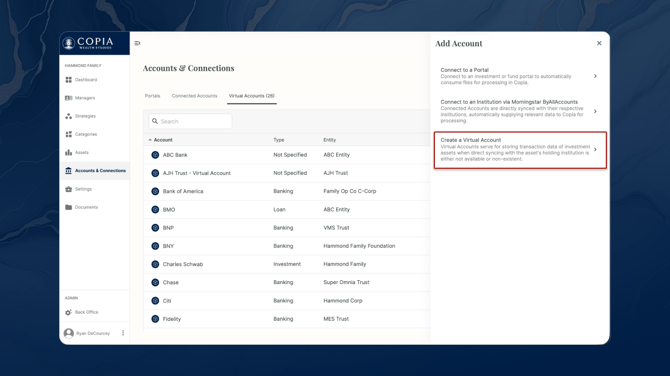
To create Virtual Account navigate to the Accounts and Connections. Click "Add Account" in the top right, and choose "Virtual Account" on the right side panel.
Complete Required Fields
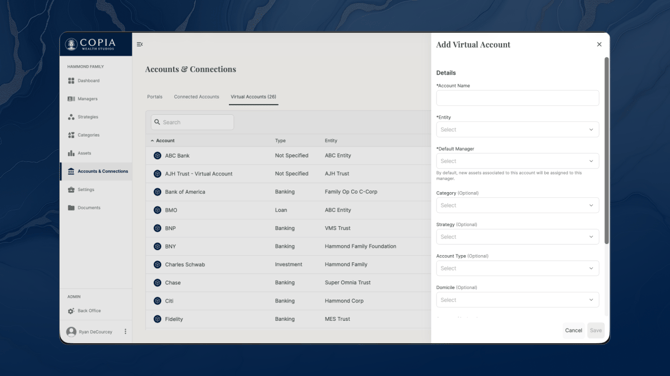
Fill in the necessary information. Start by giving your Account a name and assigning it to the appropriate Entity and select Default Manager. It's important to note that all data within the Account is associated with an Entity, and the Default Manager will be assigned to any new holdings added. You can migrate holdings between accounts and managers at any time, so don't worry about getting this perfect.
You also have the option to fill in various optional fields that can help you classify your accounts more effectively. There are numerous types of accounts available, and some general categories include:
- Banking
- Insurance
- Investments
- Other
Viewing Account Details
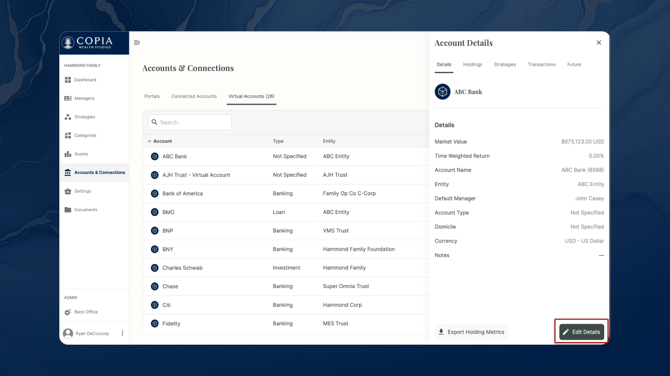
While viewing Accounts in the Front Office you also have the option of seeing all details by clicking on the account to open the Account Details side panel. At the bottom of the panel there are options to Edit Details (to edit or delete the account) or Export Holding Metrics. 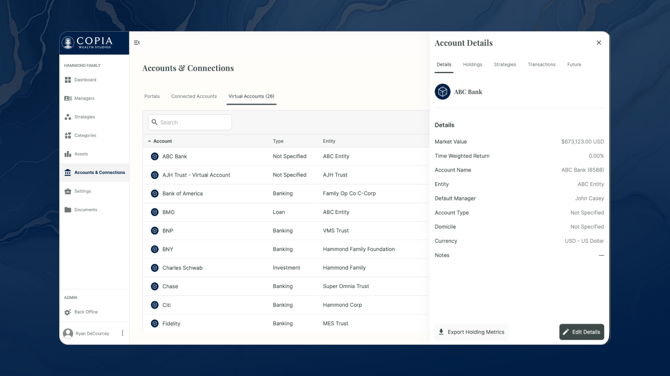
Viewing Holdings
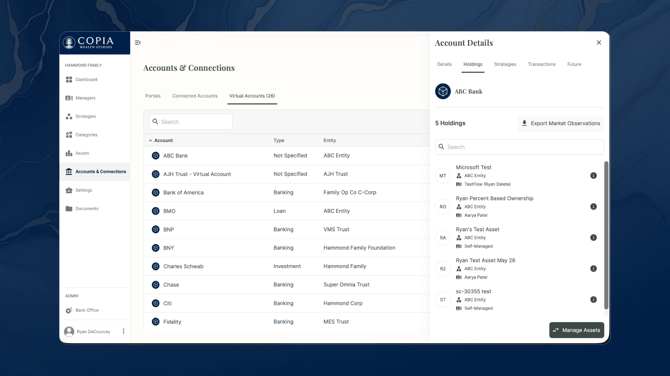
Holdings that are stored in each respective accounts. In order to do this simply click on the Account and navigate to the Holdings tab. Each holding shows:
1. Entity: Every Account represents a specific entity. Remember, every Asset needs a respective Entity.
2. Manager: Every holding needs a manager. If that manger is yourself, like in this example, make sure you select Self-Managed.
Viewing Transactions
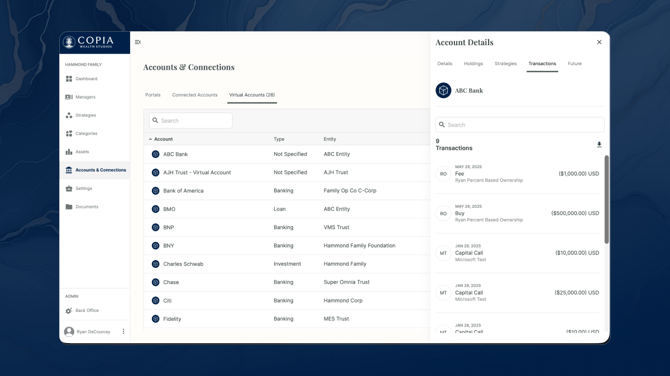
Additionally, you have the ability to view all transactions that are stored in each Account. To do this, simply click on the Account whose transactions you wish to view, and then navigate to the Transactions tab.
1. Transaction Type: Every transaction has a corresponding transaction type that it needs to be classified into (Ex. Buy,Sell, Capital Call, Income Distribution etc). Copia supports several transaction types.
2. Asset: Every transaction is associated with an underlying asset. However, it's important to note that transactions are actually stored within holdings, which are what bring assets to life.
Editing or Deleting an Account
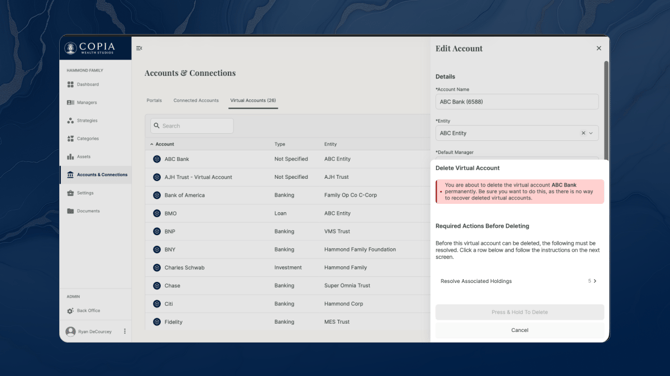
Clicking a Connected or Virtual account will open the Account Details side panel. Clicking 'Edit Details' in the lower right corner will show the Edit Details view.
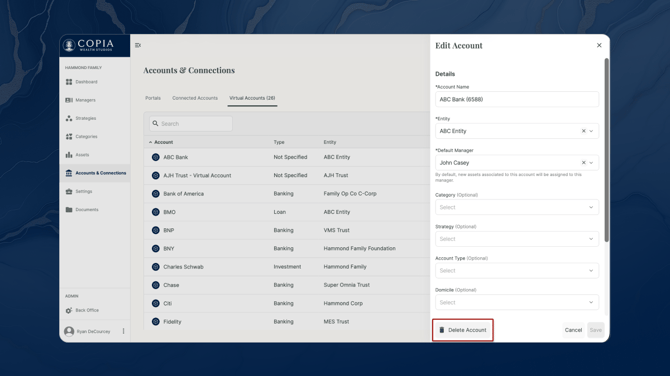
Editable fields include Account Name, Entity, Default Manager, Account Type, Domicile, Currency & Notes.
To delete an account, click the 'Delete Account' button in the lower left corner.
A confirmation view will appear. Before deleting, there may be Required Actions Before Deleting. Resolve any associated items before clicking 'Press & Hold to Delete' to finish deleting the account.